
Yes, you can collaborate on Obsidian notes. Obsidian Sync shares files between vaults; plugins such as Relay and Peerdraft add live editing. Obsidian Publish has a different job: letting people maintain a website together. The best option depends on whether your collaborators use Obsidian, need browser access, and must receive images as well as text.
Our small Peerdraft trial shows why that last question matters: a guest could edit text and open a linked note, but the embedded image did not arrive. Below, you can compare the methods, see the evidence and download the same sample project to check your own setup.
How do you want to collaborate in Obsidian?
Updating a research folder at different times is different from writing meeting notes together on a call. Start with what the other person needs to do, then choose how much of your vault to share.

| Method | A useful starting point when… | Main condition |
|---|---|---|
| Obsidian Sync | Everyone uses Obsidian and wants shared local files. | Everyone needs a Sync subscription. It is not a live coeditor. |
| Relay | Obsidian users want to write together in shared folders. | Free cloud sharing covers Markdown, not images or PDFs. |
| Peerdraft | A guest needs to edit in a browser. | Check the sharing mode, file types and limits after any trial. |
| Obsidian Publish | Contributors need to maintain a published site. | It does not automatically sync their local vaults. |
Scroll the table horizontally on smaller screens to compare every field. The product conditions in this guide were checked against official documentation on 26 October 2026. We tested the specific Peerdraft setup described below; we did not test Sync, Relay or Publish.
Share an Obsidian vault with Sync
Obsidian Sync supports shared vaults with up to 20 users. Each collaborator needs an active Sync subscription. Members have equal permissions, apart from inviting others, which the owner controls. There is no fine-grained or read-only role.
A separate project vault is the clearer choice when your personal notes should stay private. Excluding a folder from syncing on one device is not the same as controlling another person’s access.
Sync suits people who work on local files and can take turns editing. It does not provide live cursors or simultaneous coediting of the same note. Agree who is changing a note when someone else is reviewing it.
What if two people change the same file?
Obsidian’s conflict handling depends on the file type. Markdown changes can be merged, but that can leave duplicated text or formatting problems. Other files, including Canvas files, use the most recently modified version.
Since Obsidian 1.9.7, you can choose conflict files instead of automatic merging and compare the versions yourself. This setting is device-specific. Keep a backup and agree how to resolve conflicting edits; version history is a recovery aid, not a substitute for a live editor.
Edit notes together with a collaboration plugin
Relay: shared folders for Obsidian users
Relay offers shared folders and live cursors. Its Free cloud plan supports up to three users and two devices per user, with Markdown files only. It is worth considering for a small text-only group. Hosted images and PDFs need attachment storage, listed in the paid Hobby plan.
File location matters too. Relay shares files inside the shared folder. A note can display an image from elsewhere in your vault while your collaborator receives only the note. Check both the attachment folder and the plan before assuming that the project is complete.
Peerdraft: a guest can join in a browser
Peerdraft lets guests join without an account or installation. In our check, the person creating the share needed an Obsidian account and the Peerdraft plugin; the guest used Chrome without signing in.
The sharing mode changes what happens after you close the note. Peerdraft calls its temporary, single-document sessions fleeting sessions. They end when all editors close the document or syncing is stopped. Persistent shares support longer-running work, including folders, and remain available until you explicitly end sharing for everyone.
For help with one draft today, check the temporary-session option first. For a project the guest must return to next week, check persistent sharing and its ongoing limits. Closing a browser tab is not the same as revoking a persistent invitation.
What worked in our Peerdraft check?
Watch how text changes, a linked note and an image behaved in the browser guest’s view, and what happened when sharing ended.
Watch the Obsidian collaboration check on YouTube.
We used a small sample project for a community reading room: a project plan, a linked Decisions note and a PNG room layout. The initial check used Obsidian 1.14.5 on Windows and Peerdraft 2.24.1, with an anonymous Chrome guest on the same computer. The creator’s account was on a Pro trial. We checked the workflow on 24 October and repeated selected checks for the screenshots on 26 October 2026.
Text changes reached both views
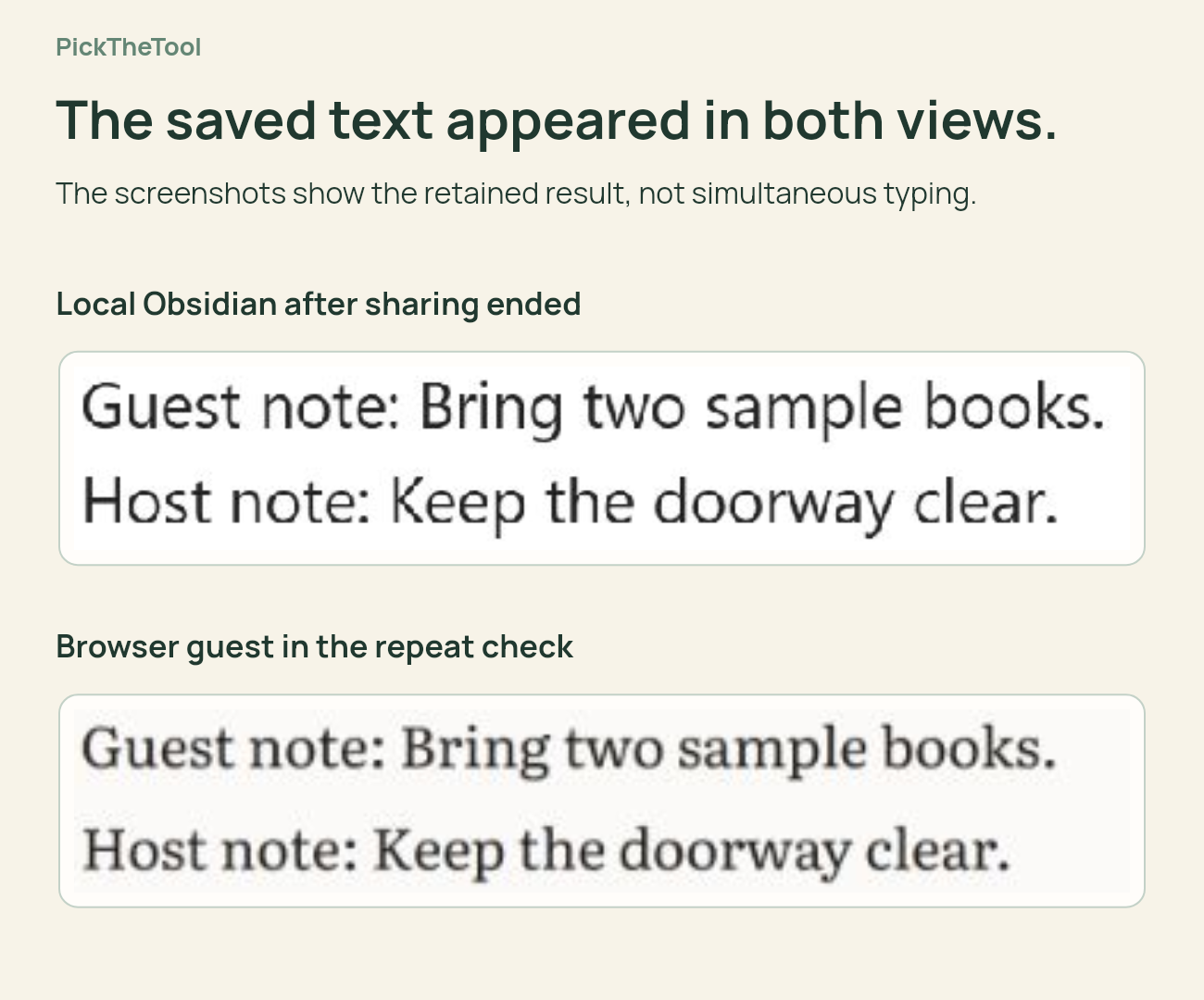
The guest added a request to bring two sample books, and it appeared in Obsidian. A task checked in Obsidian appeared in the browser. The host added a request to keep the entrance clear. The guest then changed “entrance” to “doorway”, and the local note received that change.
The linked note opened, but the image did not
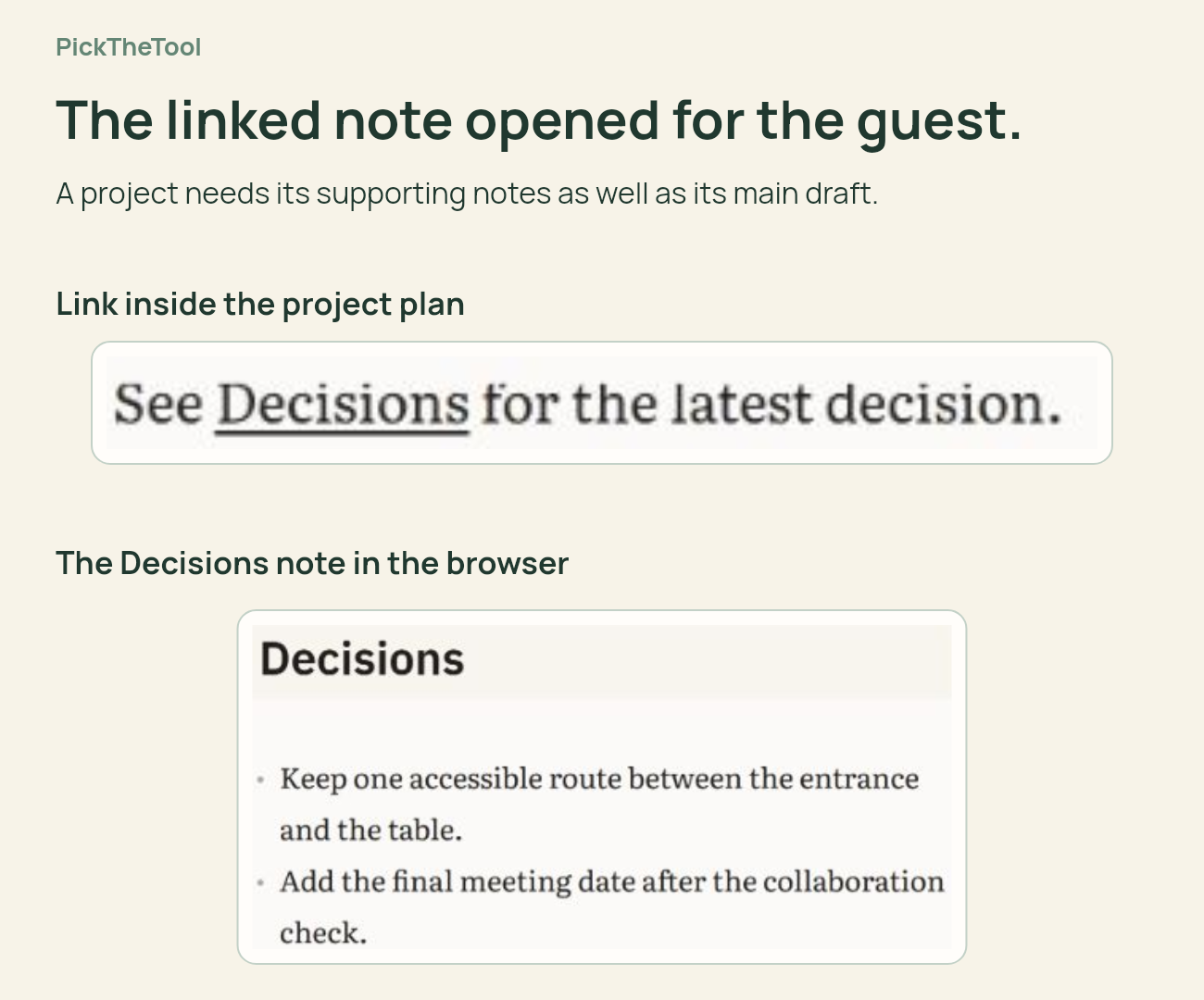
Sharing the folder made its three Markdown notes available. The Decisions link inside Project plan opened the intended note in the browser, so the guest could follow the project’s supporting information.
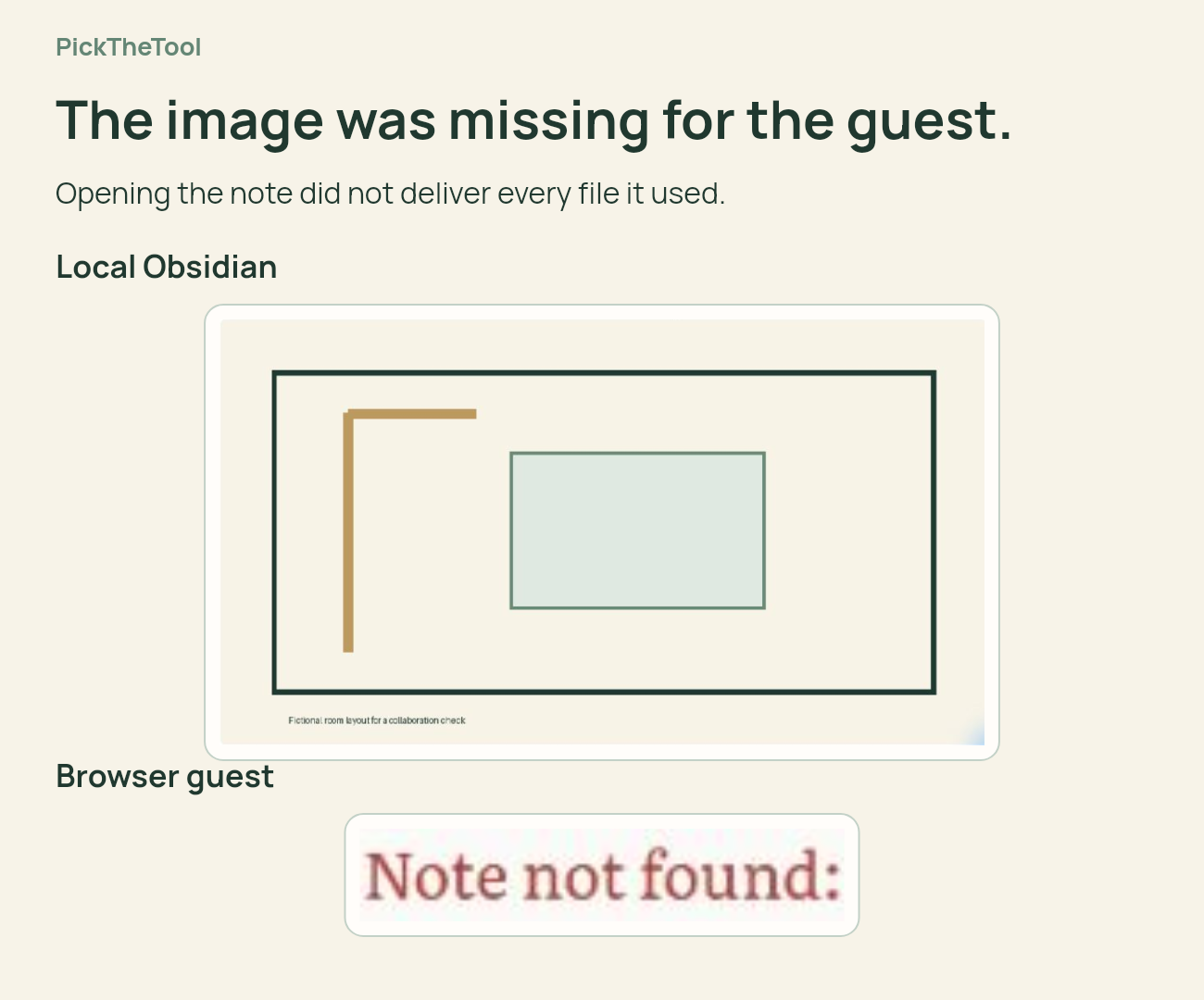
The room-layout PNG was different. It was present locally, inside the project’s attachments folder, but the guest saw “Note not found”. This happened with both a single-note share and a folder share. We did not establish the cause, so this is a result for the tested setup, not a claim that every Peerdraft attachment method fails.
Ending the share stopped access through the old invitation
The shared note remained available after a browser reload. After we used Stop syncing for everyone, the old note link reported that it was unavailable. Ending the folder share also stopped the old folder link from opening the project. The local Markdown files and PNG remained.
There was also an unexplained interface inconsistency: the share-management panel reported an expired login while editing still worked. We did not test simultaneous conflicting edits, offline merging, separate devices or networks, or the Free plan after the trial. We did not audit security or deletion of copies already received.
Our practical conclusion: the tested route worked for sequential text editing with a browser guest and for opening a linked Markdown note. It did not deliver the embedded PNG. A group that needs those images should resolve that gap before moving its work into this setup.
Can you collaborate on Obsidian for free?
Some plugin arrangements have free options; Obsidian Sync collaboration requires a subscription for every participant. Count the whole group and distinguish the ongoing plan from a temporary trial.
| Setup | Group cost | What it covers |
|---|---|---|
| Sync Standard: 2 people | $96 per year, or $10 per month | Two annual subscriptions at $48 each, or two monthly subscriptions at $5 each. |
| Sync Standard: 3 people | $144 per year, or $15 per month | Three paid subscriptions, with the same billing choice. |
| Relay Free | $0 | Cloud sharing for Markdown; up to 3 users and 2 devices each. |
| Relay Hobby | $5 per month total | Personal tier with attachments, 10 GB and up to 6 users. |
| Peerdraft Free | $0 within its listed limits | Unlimited fleeting sessions and up to 10 persistent shares. |
Prices are in USD, checked on 26 October 2026. The annual Sync totals are paid yearly; they are not monthly-billed offers. Check current Sync prices, Relay plans and Peerdraft limits, taxes and eligibility before committing.
Sync Standard limits each file to 5 MB. Peerdraft advertises an automatic 14-day Pro trial, so a working trial feature is not proof that it will remain free. Our pilot did not verify post-trial access. A self-hosted option can avoid a hosted subscription while still requiring infrastructure and maintenance.
Try the sample project with your own group
Download the sample collaboration project (ZIP). It contains three Markdown notes, the room-layout PNG and a results sheet. The files use made-up project details, with no real personal information. Extract them into a separate test folder or vault, then follow your chosen tool’s official setup instructions.
The useful outcome is a decision about your actual workflow. Use the same plan, devices and file types your group expects to keep using.
- Record the setup. Note the app and plugin versions, plan or trial status, participants and devices in Check results.md.
- Join as the other person. Use their own account or guest session. Confirm that only the intended project is shared.
- Make changes in both directions. For live editing, try different lines and then the same disposable sentence. For file sync, wait for syncing and inspect any conflicts. Compare both views.
- Open the supporting files. Follow the Decisions link and open the PNG as the guest. Add a harmless example of any other essential file type, such as a PDF.
- Leave and return. Check reopening the share. If offline work is supported and needed, test a harmless offline change and compare the copies after reconnecting.
- Remove access. Use the documented removal or stop-sharing action. Try the old invitation as the guest, and record which local copies remain.
Mark each result as working in this setup, needing a change, or unverified. If an essential step fails, fix it and repeat the check before sharing real work. A successful text edit cannot cancel out a missing file or an access problem.
Who can read, edit and keep the notes?
Sharing one folder limits the material involved; it does not necessarily limit what a member may change. Relay’s private-folder option needs a qualifying paid server plan and lets you select who has access. Those selected users can read and write; it is not a read-only folder role.
The hosting mode also matters. Relay says its cloud service is not end-to-end encrypted. Its self-hosted arrangement changes where the notes live but still involves account and permission metadata. Peerdraft documents end-to-end WebRTC exchange for fleeting sessions; persistent shares use server storage with encryption in transit and at rest. These are different privacy arrangements, not interchangeable claims.
Removing access does not erase copies already received. An invitation that no longer works tells you about future access through that route. It does not prove that another person’s downloaded files or copies have disappeared.
Avoid two sync services managing the same files. Relay’s guidance permits separate services for different parts of a vault, with carefully checked exclusions. Double coverage can cause conflicts and data loss.
When another tool is simpler
If most participants do not use Obsidian and need regular comments, browser editing and access roles, compare a shared-document workspace before asking everyone to adopt a vault workflow. Our Notion vs Obsidian comparison covers that broader choice.
If the job is maintaining a website, Obsidian Publish collaboration is the relevant option. Only the site owner needs the Publish subscription; collaborators need Obsidian accounts. Published changes do not automatically update their local vaults, so contributors must coordinate before publishing again.
If you are still deciding whether local Markdown files fit your work, start with our Obsidian overview. If a collaboration requirement rules it out, compare your other non-negotiable needs in the note-taking system constraints guide.
Choose the collaboration method that fits your people, files and access needs. For Obsidian users working at different times, shared-vault sync may be enough. For a live session or a browser guest, a plugin may fit better. In either case, check the linked notes, attachments and end of access before moving the real project.