
Notion and Obsidian organise notes in different ways. Notion brings pages, databases and shared work into an online workspace. Obsidian stores notes as local Markdown files that you can organise, link and open in other apps.
Notion vs Obsidian: The main differences
Notion brings shared project records together in one workspace. A project brief, meeting record and task database can sit alongside one another, with access for the people who need them. You do not have to manage a folder of files or choose a separate syncing method.
Obsidian keeps personal notes in files you control and can connect through links. You can write, search and organise them on your device. That also gives you more responsibility for backups, syncing and any extra functionality you add.
| What matters most? | Notion | Obsidian |
|---|---|---|
| Where notes live | Pages in a cloud workspace | Local Markdown files in a vault |
| Shared editing | Built-in shared pages and permissions | Shared Sync vaults, but no native live co-editing of the same file |
| Structured information | Databases with properties, relations and multiple views | Properties and Bases views over local notes |
| Connected ideas | Page links and backlinks | Note links, backlinks and graph views |
| Offline use | Downloaded pages in desktop and mobile apps, with limits | Local notes available without an internet connection |
| Multiple devices | Workspace syncing built into the service | A syncing method you choose and configure |
| Moving away | Export content and check what the destination preserves | Keep the files; app-specific features may need adjustment |
Neither is automatically simpler. A small Notion workspace can be straightforward; an elaborate one can become a maintenance job. An Obsidian vault can begin with a few notes, but a large plugin setup adds moving parts.
For more on each tool's strengths and limitations, see our Notion profile and Obsidian profile.
How you organise and find your notes
Pages and databases versus files and links
In Notion, a note can be a standalone page or an item in a database. A database item is itself a page, so it can hold both structured properties and longer writing. Views let you filter or rearrange the same information without creating separate copies. See Notion's explanation of databases.
For example, a project database could hold one page per client brief, with a deadline, owner and status. You might view active briefs as a board and upcoming deadlines as a calendar. The advantage is the shared structure: everyone knows which fields to update and where to find the latest brief.
That structure needs decisions. If every passing thought requires choosing a database, filling several properties and finding a template, capture can become unnecessarily complicated. Give quick notes somewhere simple to land before deciding whether they need more organisation.
In Obsidian, a vault is a folder containing your notes and supporting files. Markdown stores the text and simple formatting markers in readable files; you do not need Obsidian just to read the words. A note might hold a source summary, an idea or a project outline. Links can connect those notes wherever a relationship matters. Your collection can grow without deciding every category in advance. Obsidian explains the file model in how it stores data.
A research note about a source could link to an argument it supports and a question it leaves unanswered. When you return to the argument, those links can help recover its context. The useful part is the relationship you recorded, not the number of connections on a graph.
Databases and Obsidian Bases
Obsidian’s built-in Bases plugin creates database-like views over notes and their properties, including sorting and filtering. The underlying information remains in local files.
Bases makes a reading list or project overview possible without giving up the file model. It does not make Obsidian and Notion interchangeable. Compare the views, relationships and shared updates your actual project requires; a table in both apps does not mean the surrounding workflow is the same.
Finding a note again
Try finding last month's decision without remembering its exact title. Then check whether you can recover the reasons behind it.
Try a familiar project page, a property filter, search and a meaningful link. Notice which approach gets you back to the information with the least effort. Our explanation of folders, tags and backlinks helps separate these organising jobs without turning one into a universal answer.
Setup, plugins and AI
A useful first setup should survive an ordinary busy week. In Notion, that might mean a notes page and one database with only the fields you use. In Obsidian, it could be a small vault with a few folders and links. Neither requires copying someone else's complete productivity system.
Add features when you can name the problem they solve. If a reading list needs filtering by subject, properties and a view have a purpose. If you keep changing themes while notes pile up elsewhere, customisation is getting in the way of capture.
AI also deserves a specific job. Notion offers integrated AI features, with access depending on the plan and feature. Obsidian community plugins can connect notes to AI services, but installing one introduces another developer and potentially another destination for your information. Review Obsidian's plugin security guidance before enabling community extensions.
If AI summarisation is essential, test it on suitable non-sensitive material and check what it sends, what it costs and how you verify its answer. Do not let the presence of an AI button decide the rest of your note system.
Offline access, local files and syncing
What Notion makes available offline
Notion supports offline pages in its desktop and mobile apps on all plans. Downloading selected pages is different from keeping your whole workspace as an ordinary local folder.
Pages are made available offline per device. Downloading a parent does not automatically download all its subpages. For a database, the initial download includes the first 50 rows of its first view; other important rows need attention. Some features, including AI blocks and external embeds, need a connection. Paid plans also download recently visited and favourited pages automatically. These boundaries are documented in Notion's offline help.
This can be sufficient if you prepare a few reference pages before travelling. That may not be enough if you need your entire research collection available without choosing individual pages to download. Test a real database and its attachments before relying on it away from a connection.
How Obsidian works across devices
Obsidian's local notes do not depend on downloading selected pages from an online workspace before you can edit them. You can keep writing on the device that holds the vault, even when disconnected. External websites and other online services you use with those notes still need internet access.
Access from another device requires syncing or transferring the files. Obsidian Sync is the company's own paid service. Other methods exist, but compatibility and setup differ between operating systems, particularly on phones. A cloud folder that works on a desktop is not automatically a supported iPhone workflow. Check Obsidian's device-sync guidance.
Choose one suitable sync method for a vault. Running multiple services over the same files can create conflicts. Before switching devices, allow changes to finish syncing; do not assume that opening the app means every file has arrived.
Test the device you actually use
Create a note on your computer, edit it on your phone, then return to the computer. Next, try reading and editing while disconnected. Include an attachment you genuinely need, not just an empty test page.
Check what happens after reconnecting and whether you can tell that the latest changes are present. This is more informative than assuming either app will always feel fast or frictionless on every device.
Also try capturing something when you are away from your desk: a short thought after a call or text you want to revisit from a source. Notice whether it lands somewhere you will check again. A desktop setup can look well organised while the phone becomes a separate pile of forgotten notes.
If control over files is still your main uncertainty, compare local-first and cloud note-taking before committing to either product.
Sharing notes and working with other people
Sharing a finished note is not the same as maintaining a shared working document. Ask whether someone needs to read a page, comment on it, update a record or write alongside you.
Notion is the more direct choice when several people need to work in the same pages. It has built-in collaboration and page access levels for viewing, commenting and editing. Guest access and workspace membership have different scopes and plan implications. Use the official permissions guidance before inviting people into a workspace.
Obsidian Sync can share a vault, and every collaborator needs an active Sync subscription. However, native shared vaults do not provide live co-editing of the same file or show another person's cursor. Changes appear after syncing; simultaneous edits involve conflict handling. There are also no fine-grained permissions within that shared-vault model. See Obsidian's shared-vault documentation.
That can suit people contributing to a common collection while avoiding simultaneous work on one note. It is a poor substitute for a meeting where three people expect to edit the same document together. Third-party collaboration tools may offer another approach, but they introduce separate services, costs and trust decisions. Our Obsidian collaboration guide compares those options and shows what a browser guest could actually open.
For a shared project brief, Notion is usually the simpler recommendation. For personal thinking that occasionally becomes a summary for colleagues, Obsidian can remain the private workspace while the finished summary goes elsewhere.
Privacy, backups and long-term access
Local storage gives you control over where notes are kept; it does not automatically make every setup private or protected. Obsidian's plain-text files still need device security. Obsidian Sync offers end-to-end encryption, but that does not replace protection for your local device. Any cloud sync, backup service or plugin you add changes who or what can access the material.
Notion places the content in a cloud workspace. Review account protection, page permissions and your organisation's rules before storing sensitive information there. Do not confuse an unlisted page with a private page, or a convenient share link with carefully limited access.
For important notes, plan recovery as well as access. Obsidian’s backup guide draws a clear distinction:
“Syncing is not a backup”
An accidental deletion can spread between synced devices. A separate, recoverable copy protects against a different problem.
For Notion, keep exports of material you cannot afford to lose, but inspect what they contain. An export is not a complete working replacement for the original workspace. Long-term access means being able to use the important information again, not merely possessing a downloaded archive.
For either app, include one recovery check: can you retrieve an earlier copy of a note after an unwanted change? Keep sensitive test data out of shared locations, and do not delete your only copy to perform this check. A simple, understood recovery routine is more useful than a complicated one you never run.
Pricing: What would your setup cost?
Both can support a useful personal note system without a subscription. The paid decision depends on whether you need shared workspace features, Obsidian's own syncing service, more storage or other specific capabilities.
| Option | Published USD price | What to consider |
|---|---|---|
| Notion Free | $0 | Suitable for a personal trial; check file, history and collaboration limits |
| Notion Plus | $10 per member/month, billed annually | Expanded workspace features; paid members affect the total |
| Notion Business | $20 per member/month, billed annually | Additional AI and workspace controls; do not upgrade for note-taking alone |
| Obsidian app | Free | Includes commercial use; an optional commercial licence supports development |
| Obsidian Sync Standard | $4 per user/month, billed annually; $5 per user/month, billed monthly | Optional Obsidian-operated syncing; storage and attachment limits apply |
Prices checked on 17 October 2026 against Notion pricing and Obsidian pricing. Currency, taxes, billing period and plan availability can affect the offer you see.
Notion's Free plan currently limits individual uploads to 5 MB and page history to seven days. Obsidian's free app does not require its paid Sync service, but a chosen third-party method may have its own costs. Sync Standard also has limits, including a 5 MB maximum synced file size; check Obsidian's Sync plan comparison if you keep large PDFs or other attachments.
Compare the whole setup. A free app with a syncing arrangement you cannot maintain is not necessarily the better choice. Equally, paying for a large workspace package makes little sense if your job only needs a folder of notes.
For a group, calculate the people who need paid access, not just the headline price. In Notion, a guest invited to selected pages is different from a workspace member. In a shared Obsidian Sync vault, each collaborator needs Sync. Compare those actual roles before calling one option cheaper for a team.
Moving your notes between Notion and Obsidian
Moving text is easier than preserving the way a system behaves. A successful import should leave you able to find and use the material, including attachments and important relationships.
From Notion to Obsidian
The official Obsidian Importer offers two different Notion methods. Its API method connects directly to your Notion workspace and can preserve supported databases and formulas by converting them to Bases. The file-based method uses a Notion HTML export and does not preserve databases in the same way. The API method also has limitations, including importing only a database's primary view and not importing linked data sources. Check the Notion importer documentation against the databases, views and linked data sources you need to transfer.
The API method requires granting access to selected Notion content. Keep any integration token private, limit access to what is needed and remove unused access when finished.
From Obsidian to Notion
Notion can import standard Markdown. That does not guarantee that Obsidian-specific links, plugin features or Bases will become equivalent Notion structures. Check the supported imports and limitations against your own files.
Before moving a whole collection, test a note containing links, an attachment and structured information. Verify the result, keep the original and a backup, and decide what needs rebuilding. For Notion exports, also remember that re-uploading an archive does not instantly recreate the workspace, as Notion's export documentation explains.
Can you use Notion and Obsidian together?
Yes, when each has a clear job. You might develop research and private working notes in Obsidian, then keep the team's brief, decisions and delivery status in Notion. The same project can appear in both without requiring every note to be duplicated.
Make the handoff specific. After researching a question, write the agreed conclusion into the shared project page. Colleagues should not need your personal vault to understand it. Keep private annotations separate from material intended for the team.
Avoid editing two copies of the same meeting record or maintaining identical task lists in both tools. When a deadline changes, everyone should know where that change belongs. Unless you deliberately add a separate integration, do not expect changes in one app to maintain the other.
Use both only if this division removes a real difficulty. If transferring notes takes more effort than it saves, keep your notes mainly in one app.
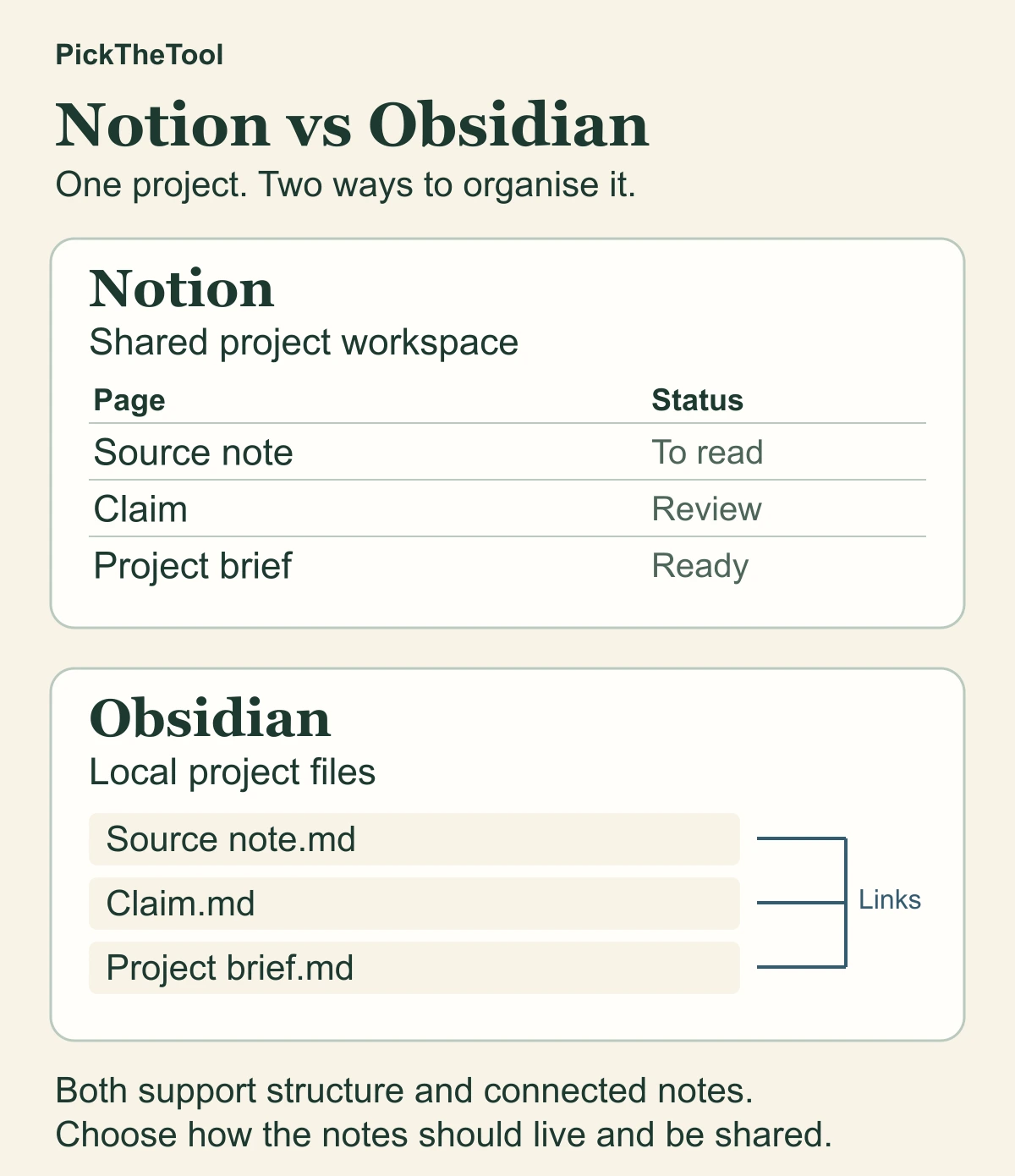
Notion vs Obsidian: One project, two setups
Follow one project through Notion and Obsidian, from private research to a brief a colleague can use.
Which fits studying, research and project work?
Lecture notes, assignments and group projects
Notion can bring a shared project plan and assignment records together. Obsidian lets you connect lecture notes, readings and your own arguments in local files.
Include your actual study materials in the trial. Large PDFs, phone access, an unreliable connection and group editing can change the answer. A polished template is not proof that you will maintain it during a busy term.
Research, writing and a second brain
A useful second brain helps you bring earlier notes into new work. Obsidian suits a collection where source notes, claims and emerging ideas connect through writing. A link should explain a useful relationship; a growing graph alone does not establish one.
Notion can be a better fit when the research needs a shared catalogue with consistent fields, responsibility and status. An editorial team may care more about which sources are approved and who is reviewing them than about exploring a personal network of ideas.
Try both with your own notes
Use the same material in both tools before moving your existing system. Pick three notes: a quick thought, a longer reference and a project or meeting record. Include a link between two of them and an attachment you would normally use.
- Capture them during normal work. Note any step you keep postponing or skipping.
- Find them again the next day. Search without relying on a carefully memorised title, and follow the relationship you recorded.
- Try your devices and offline needs. Check that the notes and attachment are genuinely available where you need them.
- Test sharing if it matters. Ask another person to perform the actual reading, commenting or editing task.
- Inspect an export or backup. Open the important material outside its original setup and see what remains useful.
If shared editing and structured records made the trial easier, Notion is likely the better fit. If you preferred working with linked local files, Obsidian may suit you better, provided you are comfortable managing syncing and backups.
If neither fits, use the Note-taking Apps Picker to compare a broader starting set. You do not need to force this particular choice.
The better choice is the app that makes your everyday notes easier to capture, find and use. Keep the setup simple enough to maintain during a busy week.